
Account Setup & Public Key Management
Set up your Softprobe account and manage public keys for secure authentication.
Prerequisites
- A valid email address
- Access to the Softprobe Dashboard
Overview
This guide walks you through:
- Creating a Softprobe account
- Setting up your tenant group
- Generating and managing public keys
- Downloading configuration files
Step 1: Create Your Account
- Visit Softprobe Dashboard
- Click "Sign Up" to create a new account
- Fill in your details:
- Email address (will be your login username)
- Password (minimum 8 characters)
- Verify your email address by clicking the link sent to your inbox
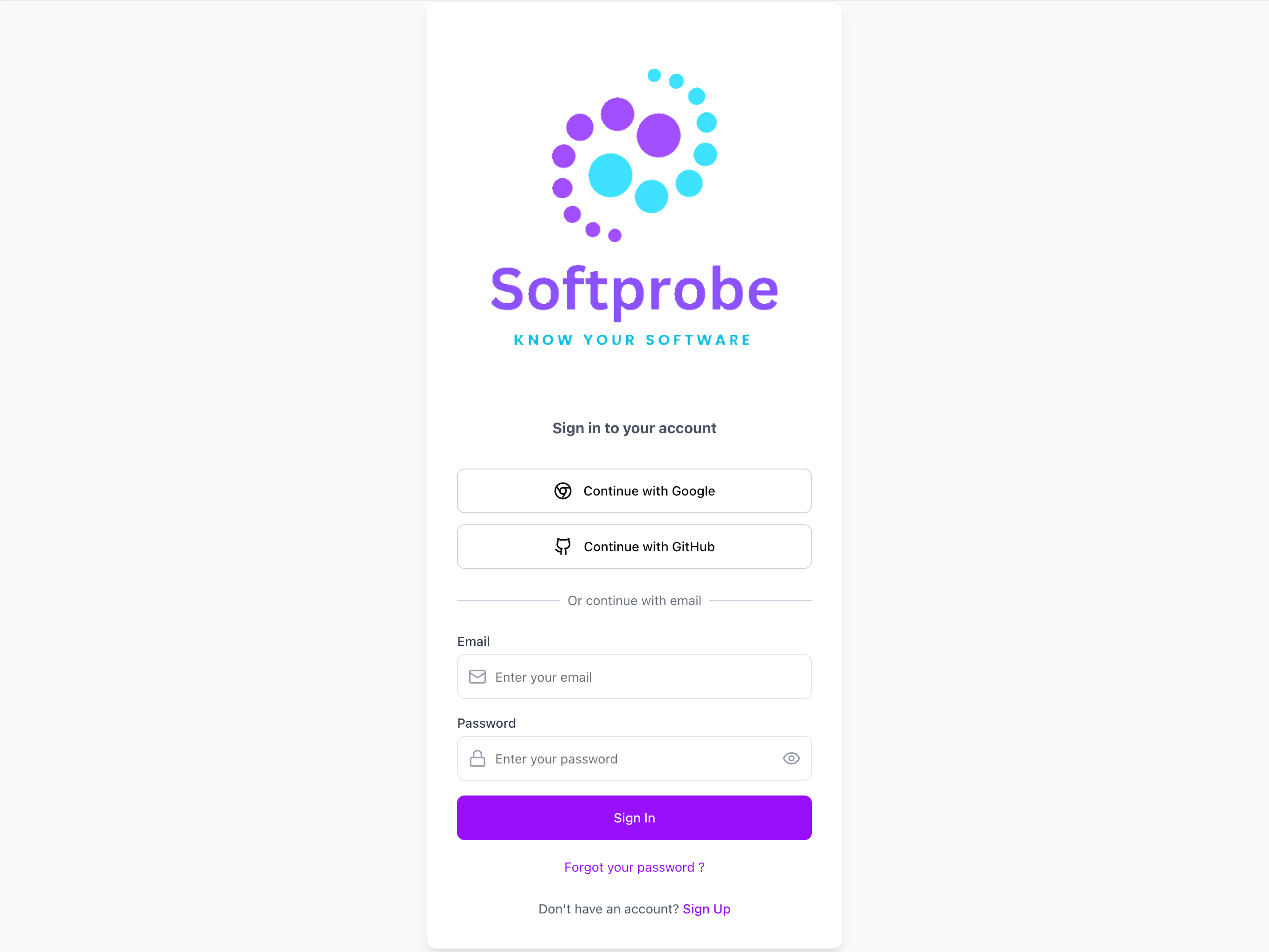
Sign Up in Dashboard.
Step 2: Access Settings and Create Tenant Groups
After email verification and login, you can access the Settings page to manage tenant groups:
- Navigate to the Settings page
- Create your first tenant group
- Click the "Create Group" button
- Tenant Group Name: Choose a unique name for your organization
- This will be used to organize your services and data
- Example:
my-company-prod,acme-corp,team-alpha
- Description (optional): Add a brief description of your group
- Click "Create Tenant Group"
TIP
Choose your tenant group name carefully as it cannot be changed later. Use a name that clearly identifies your organization or team.
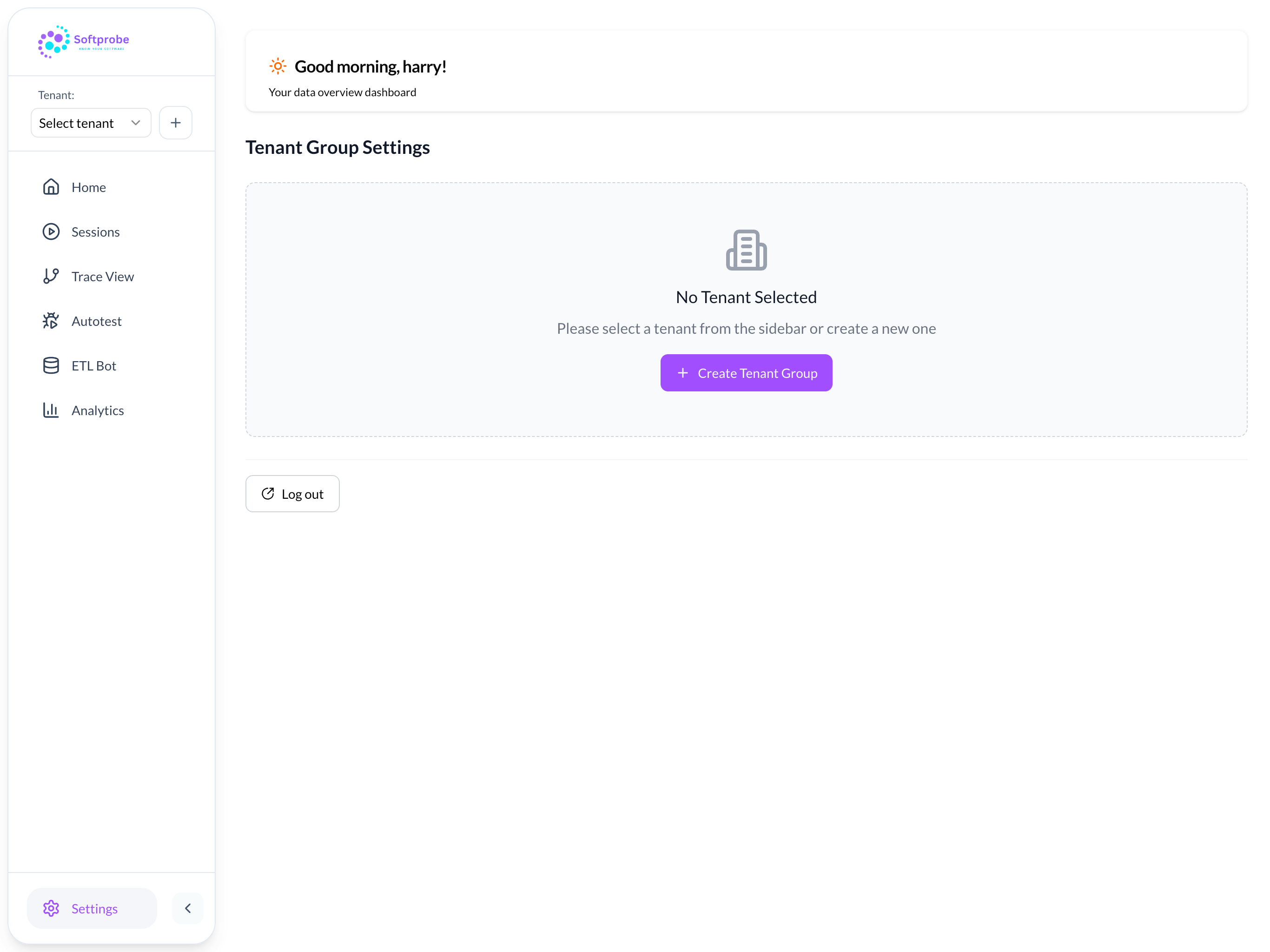
Create Tenant Group.
Step 3: Generate Public Key
Once your tenant group is created:
- Navigate to "Public Keys" in the dashboard sidebar
- Click "Generate New Public Key"
- Provide the following information:
- Key Name: A descriptive name (e.g.,
production-cluster,dev-environment) - Environment: Select the appropriate environment type
- Key Name: A descriptive name (e.g.,
- Click "Generate Key"
:::caution Important Softprobe uses public key authentication instead of traditional Public keys. This means:
- Your configuration contains only a public identifier, not a secret
- No sensitive credentials are stored in your Kubernetes configuration
- Public keys can be easily rotated without service disruption
- Uses asymmetric cryptography for authentication :::
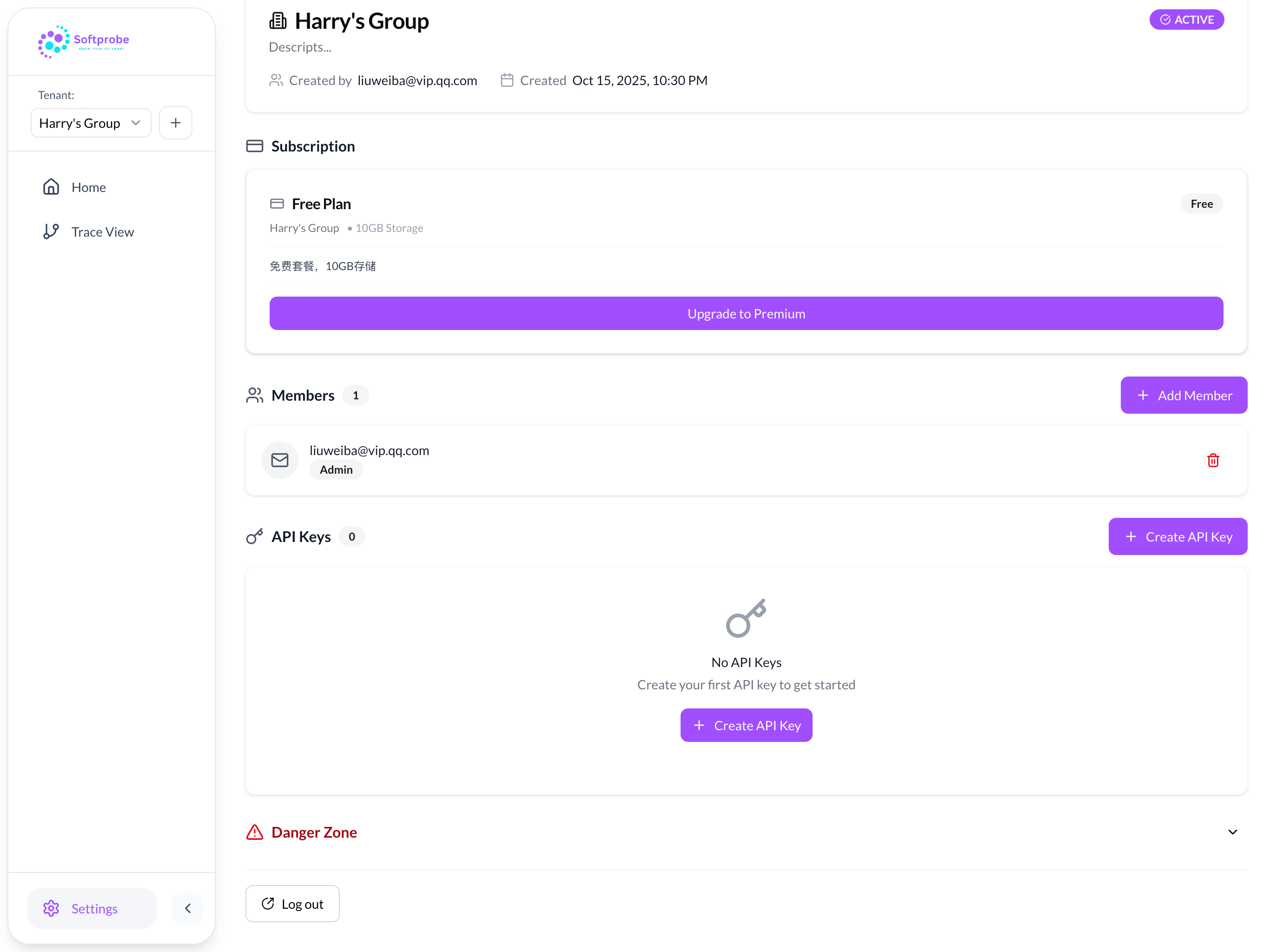
Generate Public Key.
📁 Configuration File
When you generate a public key, a minimal.yaml file is automatically downloaded. This file contains:
- Your public key identifier (not a secret)
- Pre-configured endpoints
- Default collection rules
- All necessary Kubernetes resources
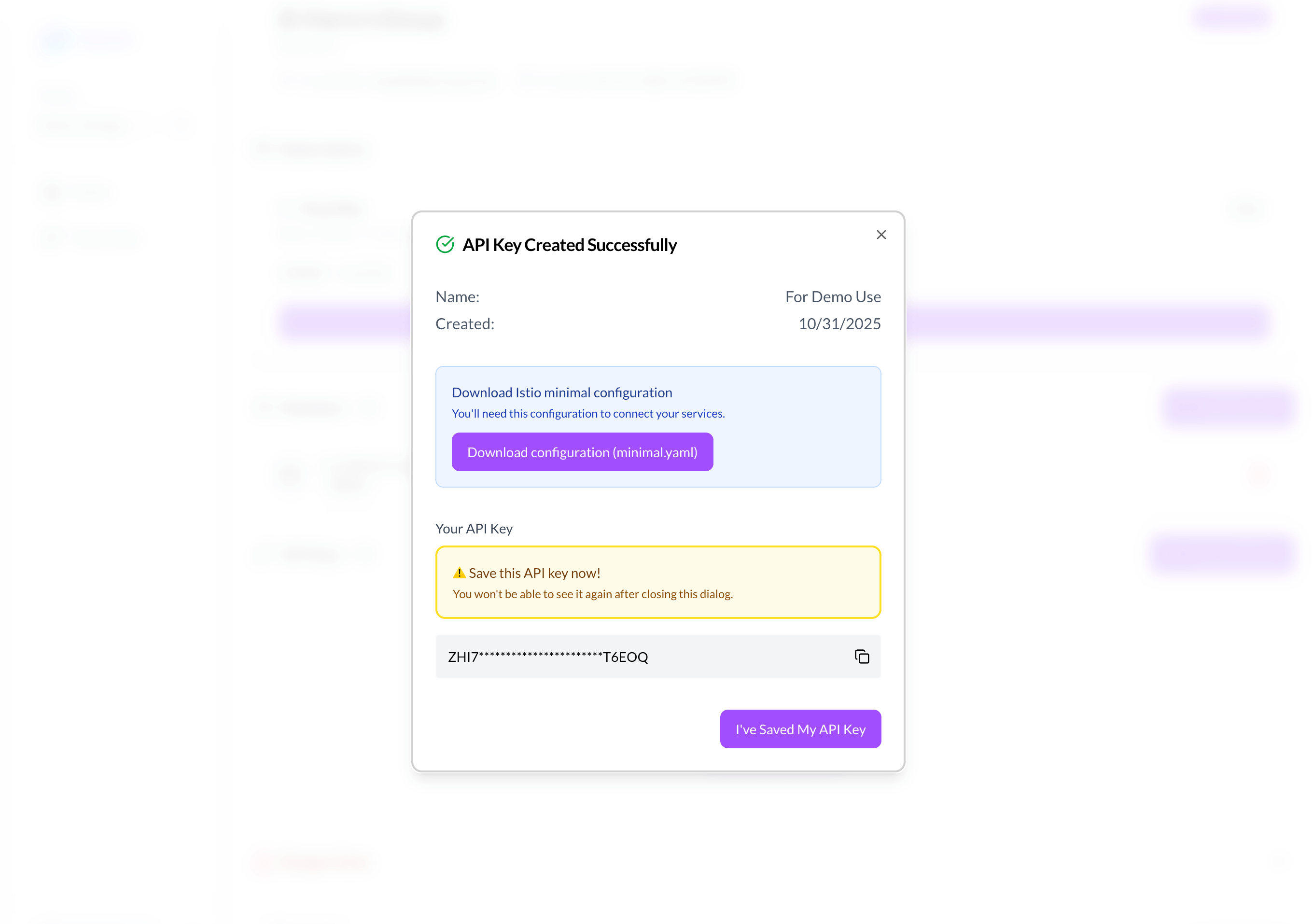
Download Yaml.
File Structure
The downloaded minimal.yaml includes:
# WasmPlugin configuration with your public key
apiVersion: extensions.istio.io/v1alpha1
kind: WasmPlugin
metadata:
  name: sp-istio-agent
spec:
  pluginConfig:
    public_key: "your-public-key-identifier"
    # ... other secure configurations
After completing account setup:
- For Quick Testing: Follow the Quick Start Guide
- For Production: Follow the Production Installation Guide
- For Custom Configuration: Review the Configuration Reference
❓ Troubleshooting
Common Issues
Can't access the dashboard?
- Check your internet connection
- Verify the URL:
https://dashboard.softprobe.ai - Try clearing your browser cache
Public key generation failed?
- Ensure your tenant group is properly set up
- Check that you have the necessary permissions
- Try refreshing the page and generating again
FAQ
Common questions have been moved to a separate page: