

Replay report
When a replay finishes, open it to see its report. The report answers three questions: are there differences, what caused them, and which ones need someone to act.
For working through individual diffs — ignoring fields, marking cases passed — see Review diffs.
Open the report
In the application workbench, go to Replay plans → Run records and click the run you want. The page opens on the Report tab; the Cases tab lists every case in this replay.
For replays triggered from a pipeline, the reportUrl returned by the API and the buttons on chat notifications open this same page. See Replay after deployment.
Start with the conclusion
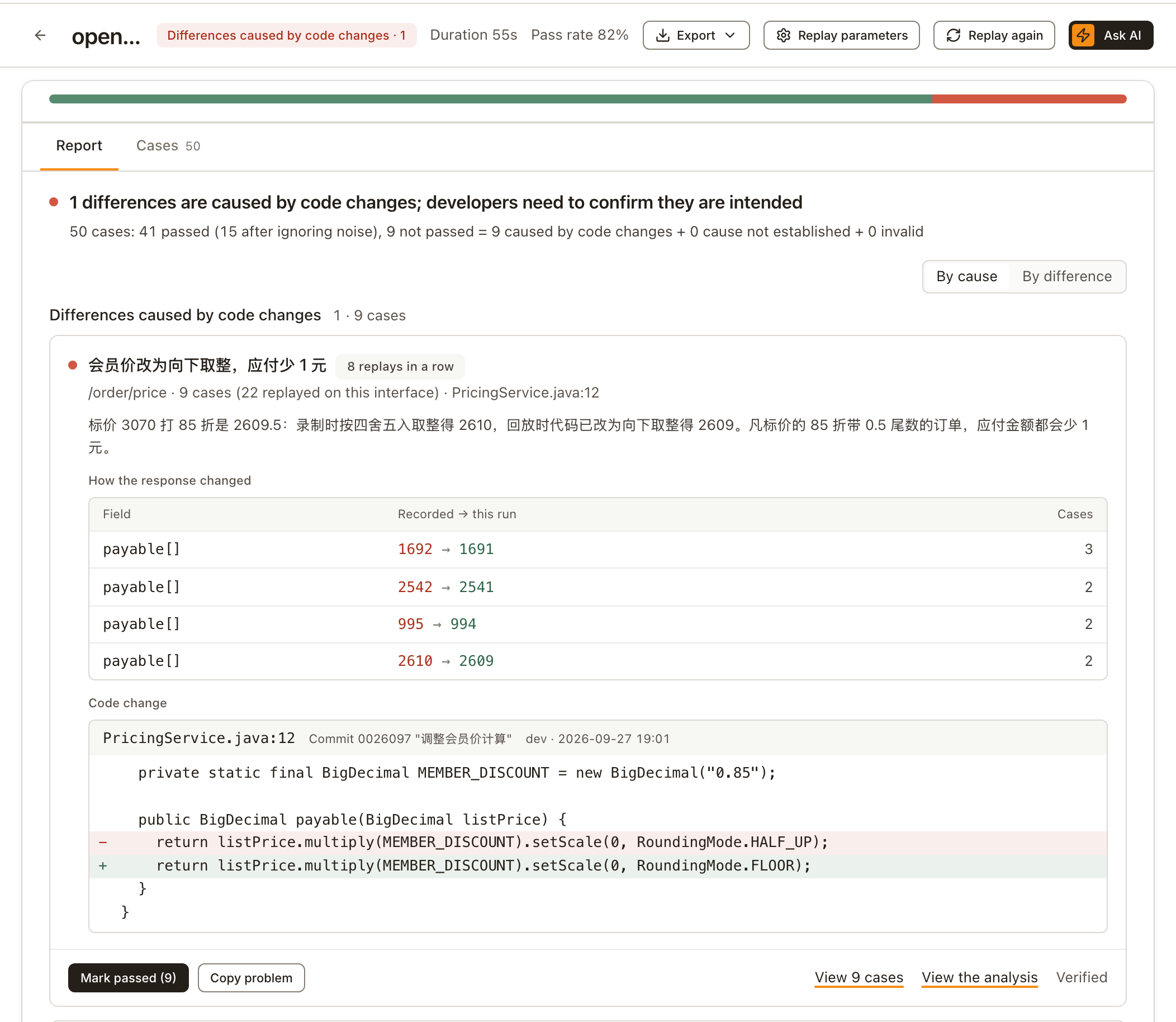
The first line is the conclusion. What it says depends on how far the replay and the AI analysis have got:
| Situation | Example conclusion |
|---|---|
| Everything passed | "All 50 cases passed" |
| AI analysis finished | "3 differences are caused by code changes; developers need to confirm they are intended", "No differences caused by code changes; cause not established for 3 cases", "No differences caused by code changes" |
| AI analysis running | "AI is analyzing causes; the conclusion is still updating", with how many cases have been checked so far |
| Analysis stopped partway | "Cause analysis did not finish", with the reason; anything already found is still listed |
| Analysis never started | "Cause analysis did not run: …" with the reason (for example, today's automatic analyses are used up), or "Causes not analyzed yet" |
| No AI analysis | "9 cases not passed, 3 kinds of differences to confirm" |
| The replay itself had a problem | Replay did not complete, No requests to replay, or Replay did not finish |
When the analysis didn't finish or never started, read the reason first, then click Analyze this replay or Analyze again under Replay details. Cases that haven't been analyzed aren't known to be fine.
The second line breaks the case count down, for example:
50 cases: 41 passed (15 after ignoring noise), 9 not passed = 9 caused by code changes + 0 cause not established + 0 invalid
After someone marks cases passed, a progress line appears below it, such as "All 1 confirmed (9 cases marked passed)" or "1 confirmed (9 cases marked passed), 2 awaiting confirmation (6 cases)". The line above doesn't change: marking a case passed records that someone confirmed it; the replay result itself is the same.
Behind the report are three steps: Replay → AI noise reduction → AI cause analysis. AI noise reduction recognizes fields that change on every run (timestamps, random IDs and the like) as noise and ignores the ones that qualify; cases that still fail are then analyzed for their cause. Whether these two steps run automatically depends on flow settings: pipeline-triggered replays are analyzed automatically by default, while manual replays need the analysis started from the report.
The conclusion is about causes, not about whether to ship
"No differences caused by code changes" doesn't mean there are no differences. Cases under Cause not established and Invalid still need someone to look at them.
AI-written text is in Chinese by default
Problem titles and explanations are written by the AI in the customer's language, which defaults to Chinese. That's why the screenshots on this page show Chinese text inside an English UI.
Problems by cause
When an AI analysis is available, problems are grouped by cause into three tiers:
| Tier | Meaning | Next step |
|---|---|---|
| Differences caused by code changes | The AI judged these differences to be caused by code changes | A developer confirms whether the change is intended |
| Cause not established | The AI couldn't confirm whether code is to blame | Investigate manually |
| Invalid | Found not to be caused by code; split further into suspected noise, configuration, replay failed and SoftProbe issues | Follow the handling note on each group |
The screenshot below comes from a different replay: the cause of all 4 failing cases was established, and they sit under Invalid → Suspected noise (expanded here).
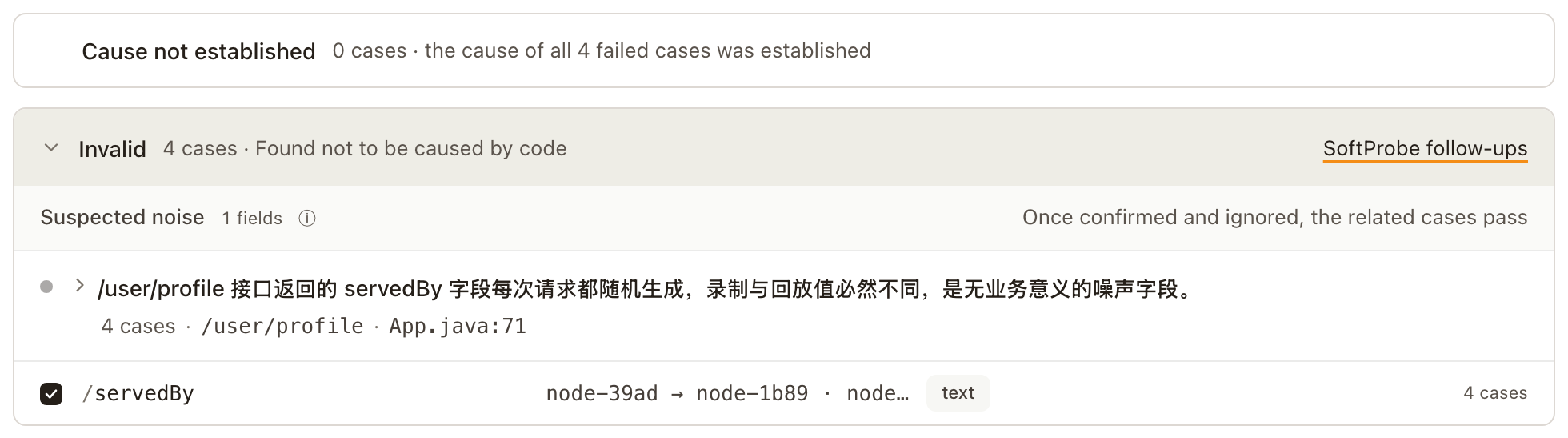
Invalid is collapsed by default. Cause not established is always listed, even at 0 cases, for example "0 cases · the cause of all 4 failed cases was established". A title there marked AI inference, not verified is only the AI's guess; treat it as a lead.
Differences caused by code changes
Each difference gets one card. From top to bottom:
- Title: one sentence about what changed. The tag next to it says whether it's First seen or has appeared N replays in a row.
- Endpoint, case count and code location, for example "/order/price · 9 cases (22 replayed on this interface) · PricingService.java:12".
- Explanation: one concrete example of how the difference came about.
- How the response changed: the field, its recorded value, its value this run, and how many cases.
- Code change: when the code was located, its location; when the commit was found too, the commit and the code before and after.
After the AI gives a cause, it checks it against the replay data. The bottom-right corner of the card shows the result: Verified or Not verified.
If the analysis couldn't read a code repository, or read it but couldn't locate the code, the card says the cause was inferred from the response data. Without a repository, click Bind a code repository on the card; once it's linked, analyze again so the AI can look for the cause in the code.
Actions at the bottom of the card:
- Mark passed (N): confirm that these cases' differences are intended. When the difference sits in a single field, you can choose Mark passed and ignore <field> instead, then pick how long to ignore it (This replay only or Every future replay) and where.
- Copy problem: copies a block of text with the endpoints, cause, code location and report link, ready to paste into a ticket or chat.
- View N cases: opens the cases behind this difference.
- View the analysis: shows how the AI reached its conclusion.
Problems by difference
Click By difference in the top-right corner to group by the differences themselves, ignoring causes: differences to confirm, downstream call differences, replay failed, and suspected noise. Empty groups aren't shown. Without an AI analysis, this is the only view.

Replay details
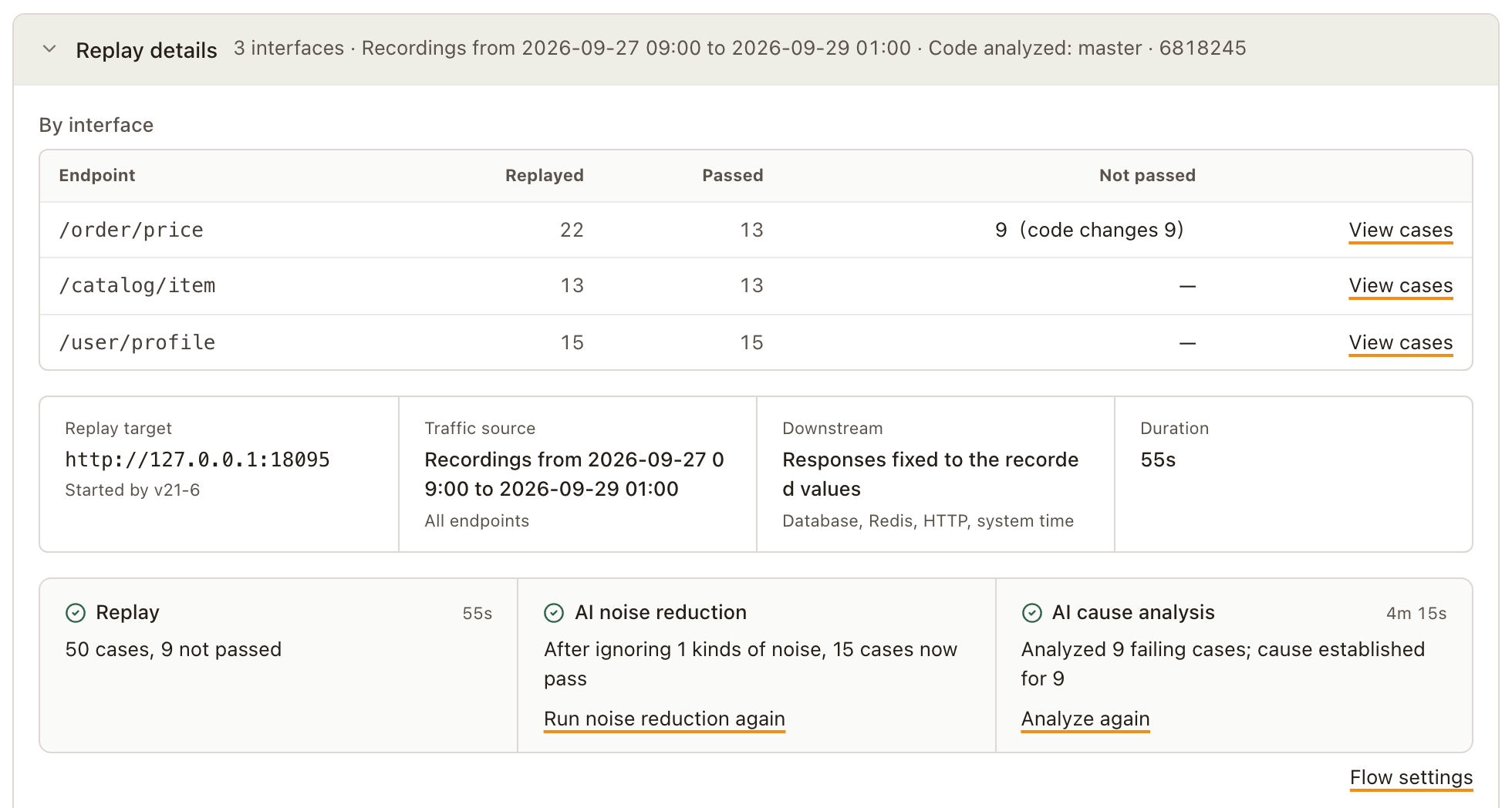
Replay details sits at the bottom of the report and is collapsed by default. Its header already summarizes how many interfaces were replayed, which recordings were used and which code the analysis read. Expand it to see:
- By interface: how many cases each interface replayed, passed and didn't pass. With an analysis, the failures are split by tier.
- Replay settings: the replay target, who started it, which recordings were used, how downstream calls were handled, and how long it took. When Downstream says "Responses fixed to the recorded values", database, Redis and HTTP calls and the system time all return what was recorded.
- The three steps: the state and result of Replay, AI noise reduction and AI cause analysis. Once the replay has finished, you can start them by hand here: Start noise reduction, Analyze this replay, or Run noise reduction again, Analyze again.
- Flow settings: see below.
- Ignored noise: see Ignored noise.
- Code version: the branch and commit the AI analysis read. SoftProbe doesn't check that this is the code the replayed service was running, and the page says so.
Flow settings
Under Replay details, click Flow settings below the three steps. Settings apply to the whole application and to every replay from then on. Replays that already finished aren't affected; to catch one up, start the step by hand.
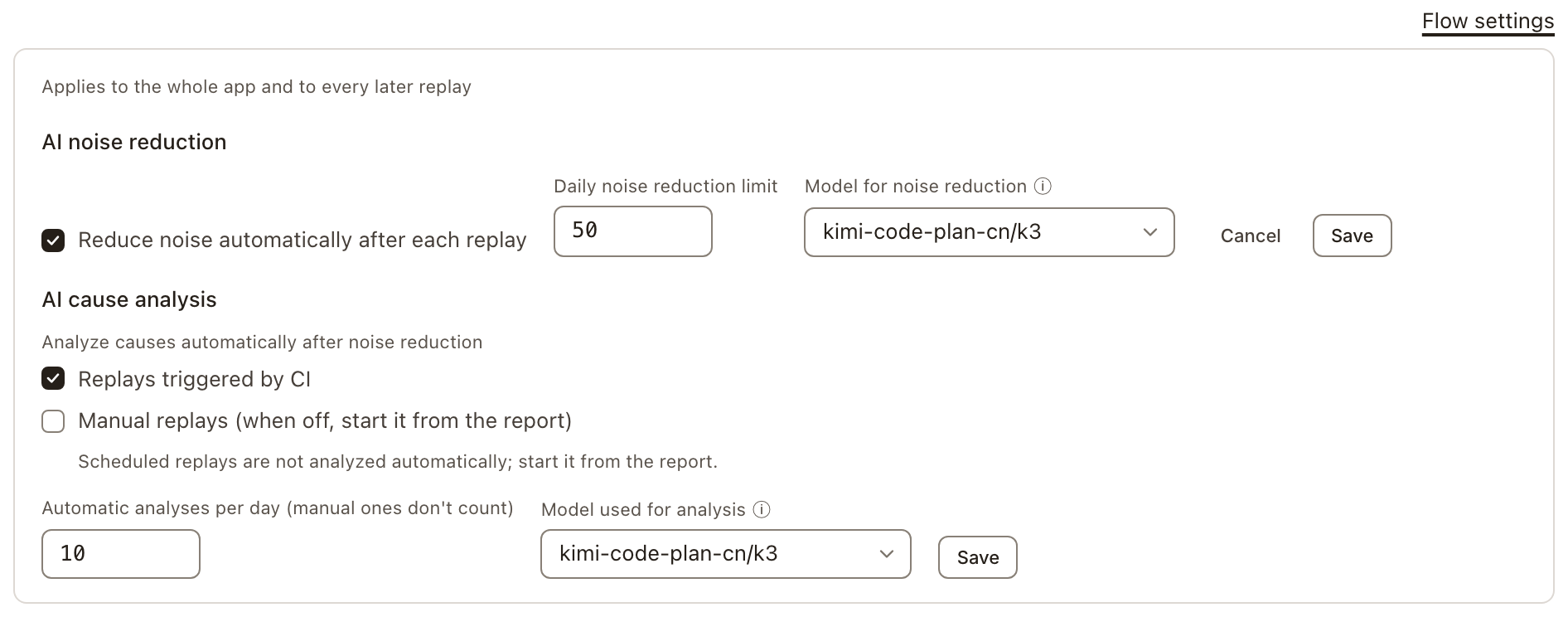
| Setting | Default | Notes |
|---|---|---|
| Reduce noise automatically after each replay | On | |
| Daily noise reduction limit | 50 | 0 stops automatic noise reduction |
| Model for noise reduction | Default model | Only connected, available models are listed |
| Analyze causes automatically: Replays triggered by CI | On | Pipeline-triggered replays are analyzed automatically |
| Analyze causes automatically: Manual replays | Off | When off, click Analyze this replay in the report |
| Automatic analyses per day | 10 | Manual runs don't count; 0 stops automatic analysis |
| Model used for analysis | Default model | Only connected models that use your own credentials are listed |
- Scheduled replays aren't analyzed automatically yet; start the analysis from the report.
- Noise reduction and analysis run on the server and don't follow the model picked in the chat box.
Ignored noise
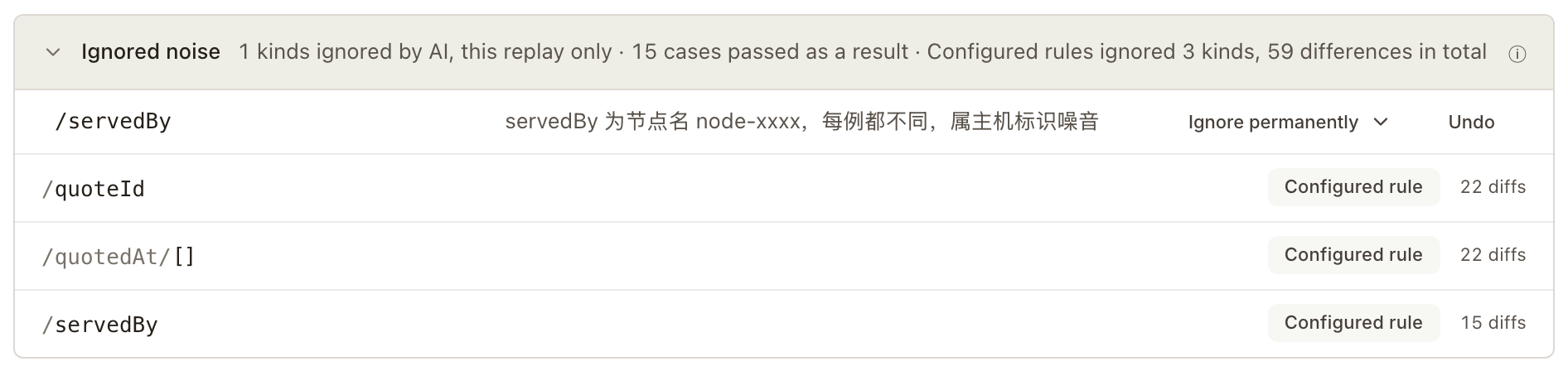
This section appears under Replay details when something was ignored in this replay. Its header says how many kinds the AI ignored, how many cases passed as a result, and how many kinds of difference the ignore rules skipped. Expanded, each ignored field takes one row:
- Fields AI noise reduction judged to be noise are ignored in this replay only, and each row ends with Undo and Ignore permanently. Undo puts the field back into the comparison; Ignore permanently adds it to the application's compare rules so it's skipped on every future replay. The AI never changes compare rules on its own — making an ignore permanent is always a human action.
- Differences skipped by your compare rules are tagged Configured rule, with how many times each was skipped.
Export the report
To archive the report, present it, or share it in chat, click Export in the page header.
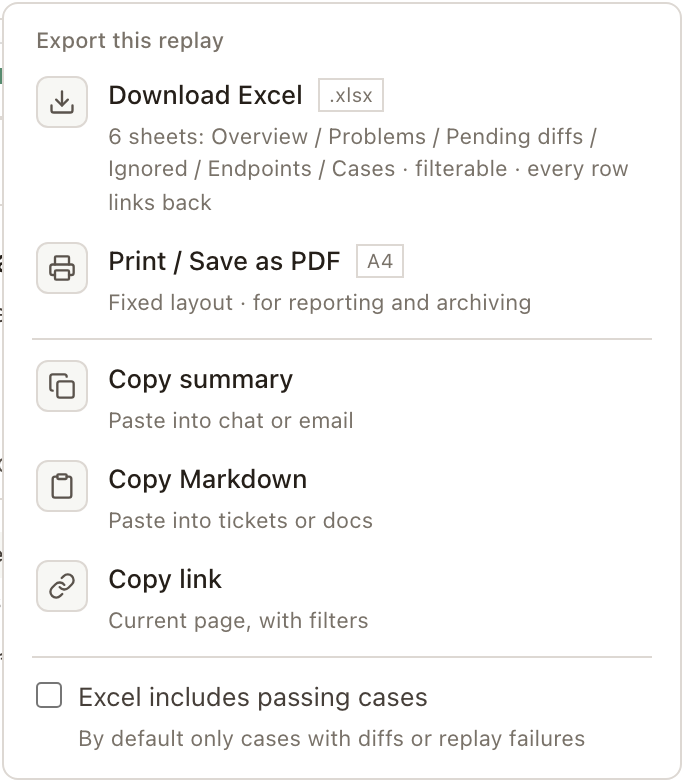
| Menu item | What you get | Good for |
|---|---|---|
| Download Excel | A filterable Excel file; every row links back to the platform | Archiving, line-by-line checks |
| Print / Save as PDF | A fixed A4 layout; choose "Save as PDF" as the printer to get a PDF | Reviews, archiving |
| Copy summary | The conclusion and the differences with the most impact, as both plain and rich text | Chat, email |
| Copy Markdown | The report with tables: conclusion, problems, differences and per-interface counts, without individual cases | Tickets, documents |
| Copy link | The current page's URL, including the environment and filters | Sending to a teammate |
While the replay is queued or running, Download Excel and Print / Save as PDF are disabled; Copy summary and Copy Markdown still work and reflect the progress so far.
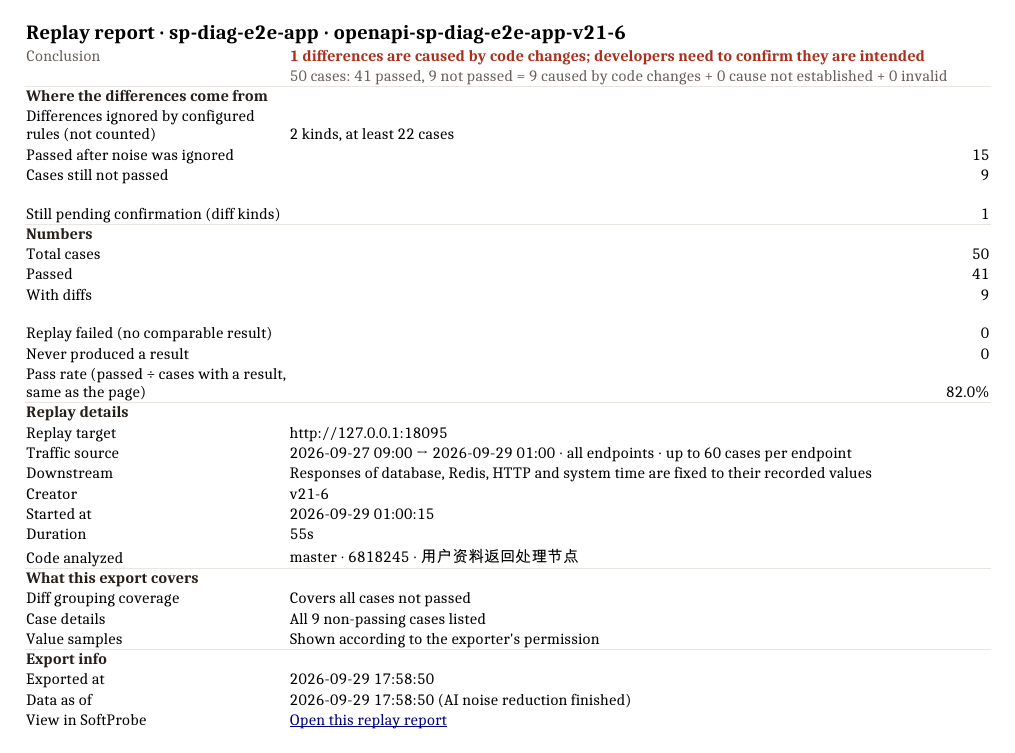
What's in the Excel file
The file has 5 sheets: Overview, Pending diffs, Ignored diffs, Endpoints and Case details. When the replay has an AI analysis, there's a sixth sheet, Problems.
- Overview: the conclusion, the numbers and how this replay was run.
- Problems: each problem the AI found, matching the cards in the report.
- Pending diffs: sorted by the number of cases affected, each row linking back to the platform.
- Ignored diffs: who ignored each one (AI noise reduction or an ignore rule), why, where it applies, and whether it's still in effect.
- Endpoints: how many cases passed, differed and failed to replay for each interface.
- Case details: by default, only cases with differences or replay failures. To include passing cases, tick Excel includes passing cases at the bottom of the menu first. Up to 20,000 cases.
Missing data is always called out
If only part of the differences were listed, some cases couldn't be fetched, or the case count doesn't match the statistics, the Overview sheet says so. When cases couldn't be fetched, the page also shows a notice with Export again.
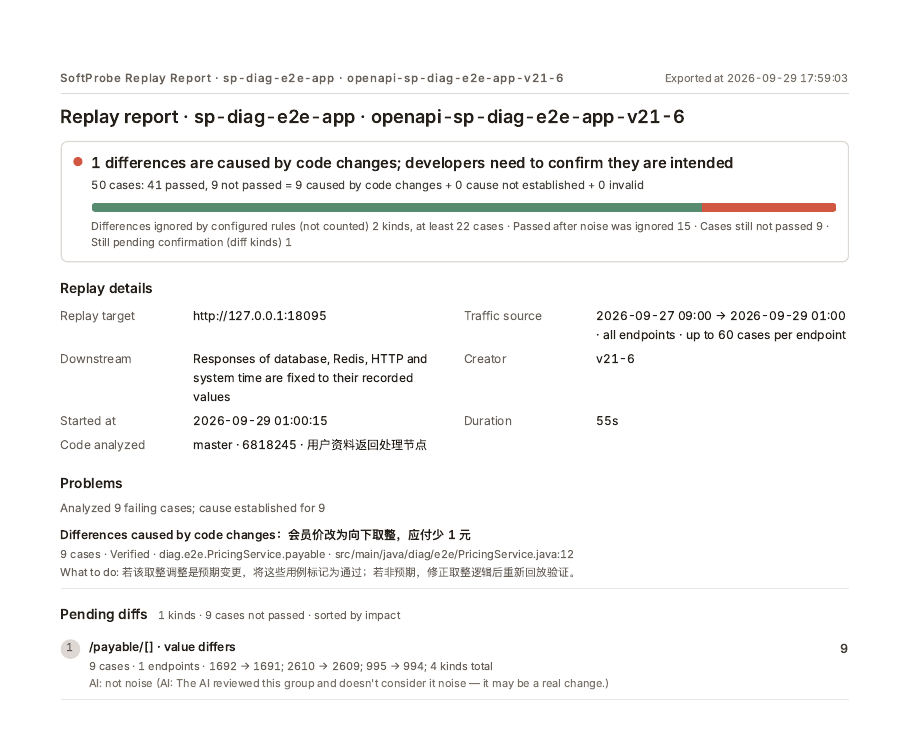
The printed version
The print layout is a fixed A4 page. It covers the conclusion, replay details, problems (when there's an AI analysis), pending diffs (the top 20 only, with a note that the rest are on the platform), ignored diffs, the interfaces with problems, and what this export covers. Per-case detail is only in the Excel file.
Next steps
- Review diffs: work through individual diffs, mark cases passed or ignore fields.
- Configure compare rules: turn fields that change on every run into rules.
- Replay after deployment: replay automatically after each deploy and let the result decide whether the pipeline continues.