

Review differences
After a replay, the replay report gives the overall verdict and the causes of the differences. This page covers going through one case's differences, and what to do with differences that aren't bugs: ignore a field, or mark the case as passed.
Most differences aren't bugs. Timestamps, serial numbers and random IDs differ on every replay without anything being wrong. Deal with those and the real problems stand out.
Open a case
In the replay report, switch to Cases. The left side lists cases by endpoint; show only those with differences, those whose replay failed, or those that passed, or search by endpoint, description or case ID. Click a case to see its details on the right.
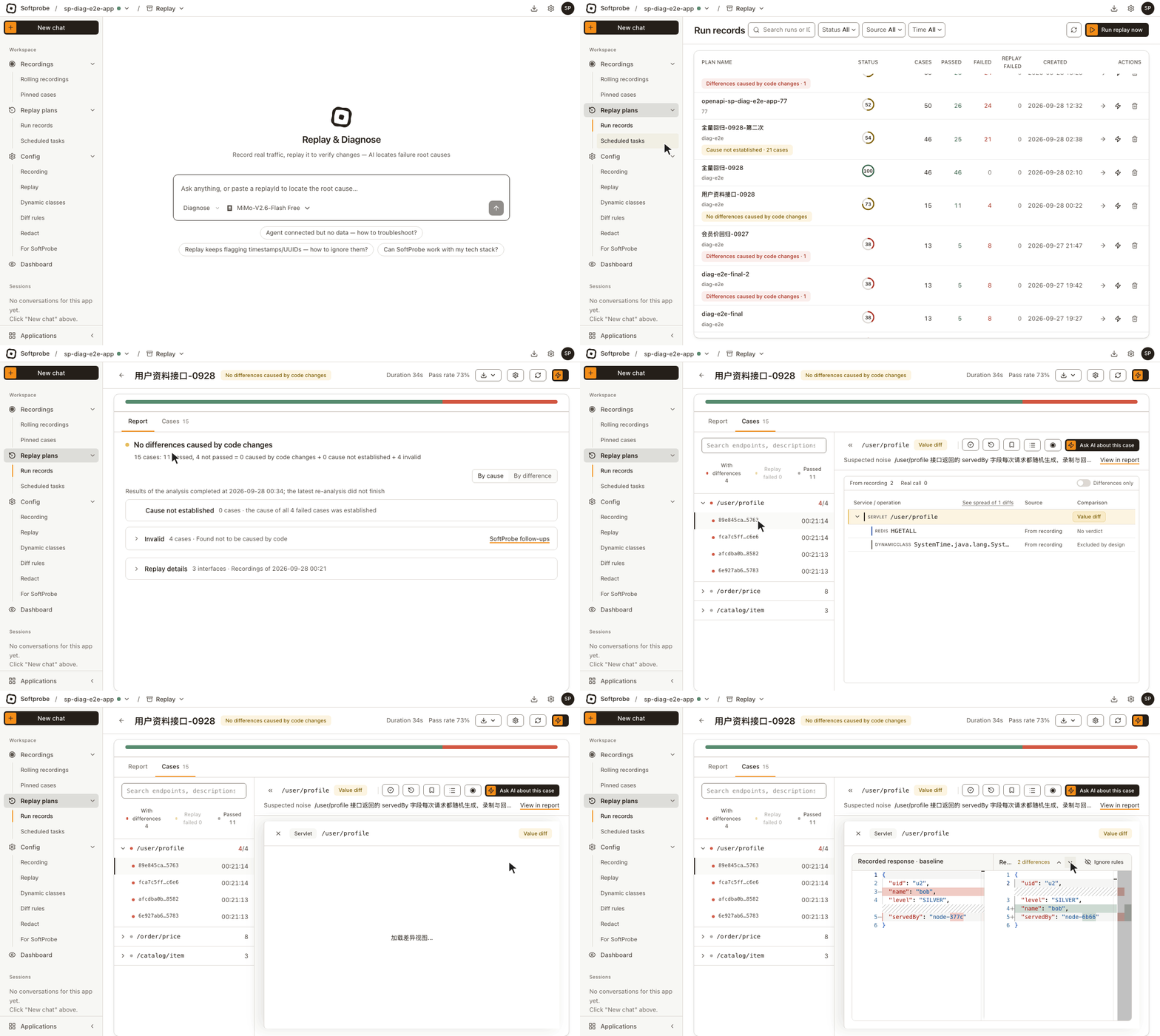
At the top of a case:
- The endpoint and its result (such as a value difference). For cases the AI has analysed, the next line is its conclusion; View in report jumps back to that place in the report.
- Buttons on the right: Mark as passed, Replay this one (creates a new plan with just this recording; this plan is untouched), Pin, View case logs, View recording detail (the full call chain and data recorded for this case), and Ask AI about this case.
Below that, the entry and each dependency call of the request are listed in call order, each with:
- Source: whether this call was answered from the recording in this replay, or made for real.
- Comparison: a value difference, not compared, no conclusion, and so on.
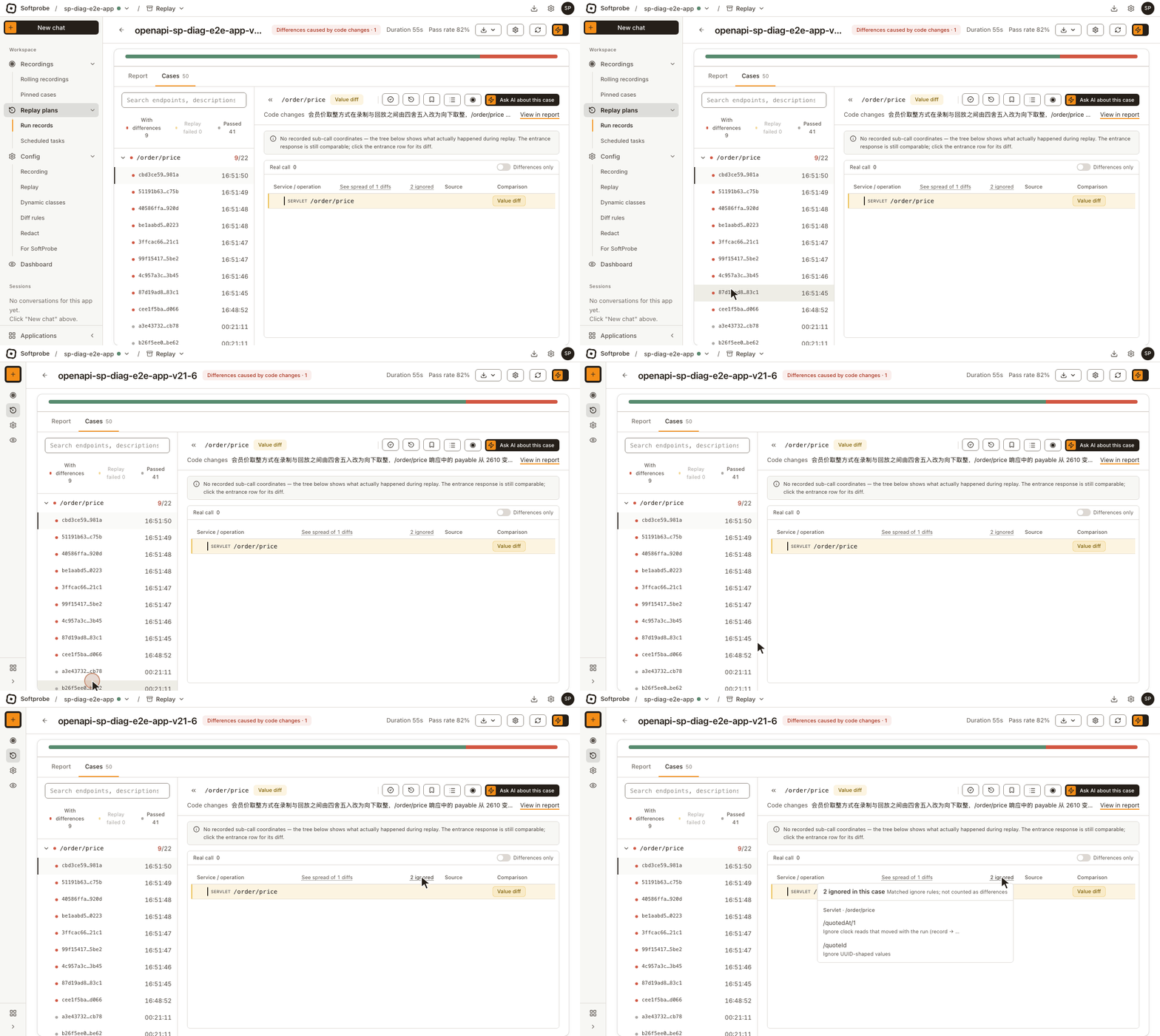
Differences only hides calls without differences. The N ignored chip sums up the fields on this case that ignore rules held back.
Read a difference
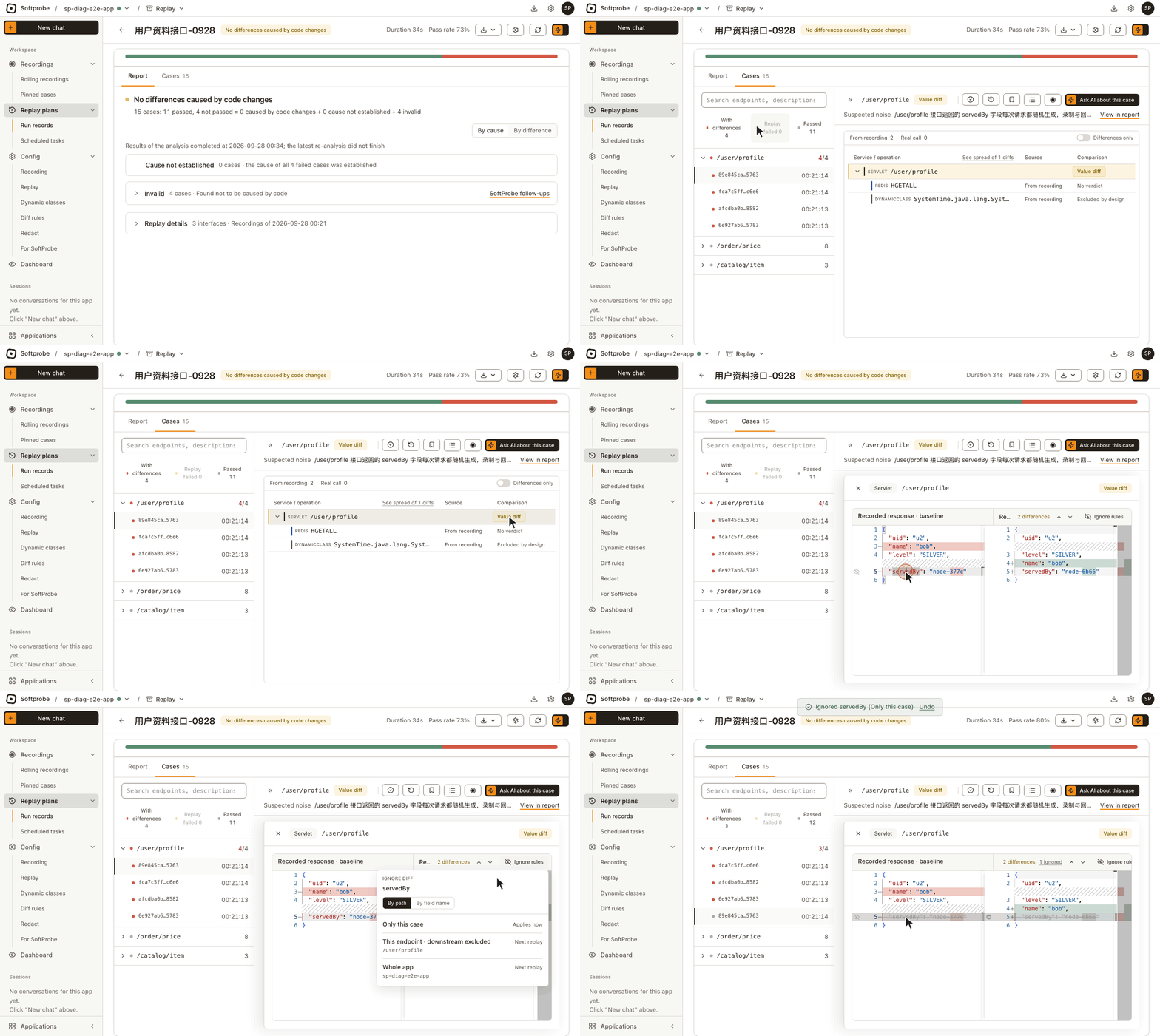
Click a call with differences to open the diff view, with the recording on the left and this replay on the right:
- For the entry, responses are compared: Recorded response · baseline and Replayed response · this run.
- For dependency calls (database, Redis, downstream endpoints …), requests are compared: Recorded request · baseline and Replayed request · this run, showing whether the service sent the same arguments as when recorded. When a call is missing or extra, only one side has content.
Values that differ are highlighted; fields held back by an ignore rule are struck through and don't count.
The top shows how many differences the call has; the up and down arrows move between them.
Ignore a field
The most common action. A field such as a timestamp changes every time and shouldn't be compared at all.
- Hover over the differing line and click the ignore icon that appears beside it, or select the line and click Ignore rules at the top right.
- In Ignore diff, check which field you're ignoring: By path (for example the second element of
payable), or By field name (every field with that name). - Pick a scope:
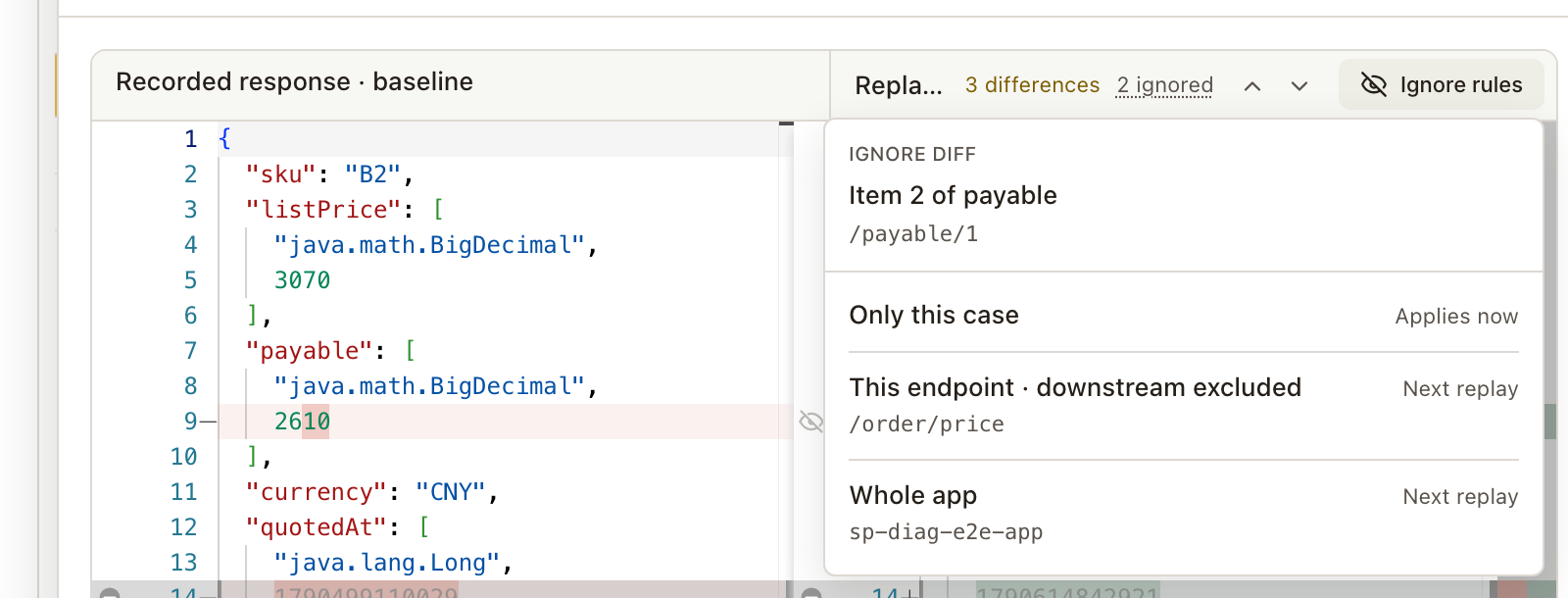
| Scope | Ignored where | Takes effect |
|---|---|---|
| Only this case | This case only | Now |
| This endpoint · downstream excluded | Every case of this endpoint, entry response only | Next replay |
| This SQL / Redis command / downstream endpoint … · any caller | This dependency call, whichever endpoint called it | Next replay |
| Whole app | Every case of the application | Next replay |
Only this case changes only this verdict. The other three write a diff rule that applies to every future replay; to see it on a replay that has already finished, recompare.
Mark a case as passed
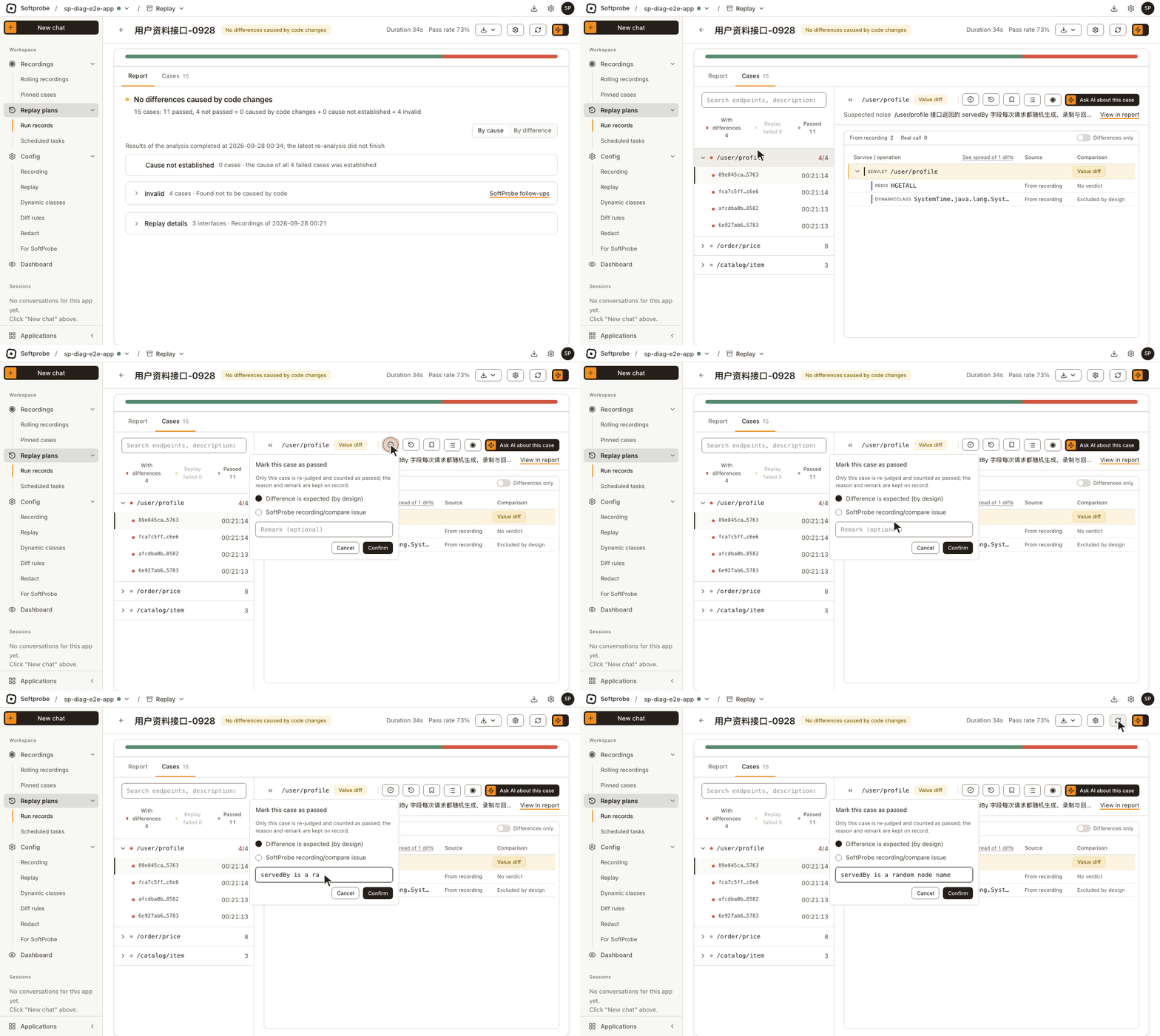
Sometimes the difference is real but acceptable: an intended change, or a problem in Softprobe's own recording or comparison. Instead of ignoring fields one by one, accept the whole case.
- Click Mark as passed at the top of the case.
- Pick a reason: Difference is expected (by design) or Softprobe recording/compare issue.
- Add a note if you like, and click Confirm.
Only this case's verdict changes; it counts towards the pass rate, and the reason and note are kept.
The By cause cards in the report can mark a group of cases at once; see Replay report.
Ignore, or mark as passed?
| Mark as passed | Ignore a field (as a diff rule) | |
|---|---|---|
| Covers | This case in this replay | The same kind of field in every future replay |
| Use for | A case you've looked at and accept | A field that changes every time by nature |
In short: to change this one verdict, mark it as passed; to never see it again, ignore the field.
Recompare
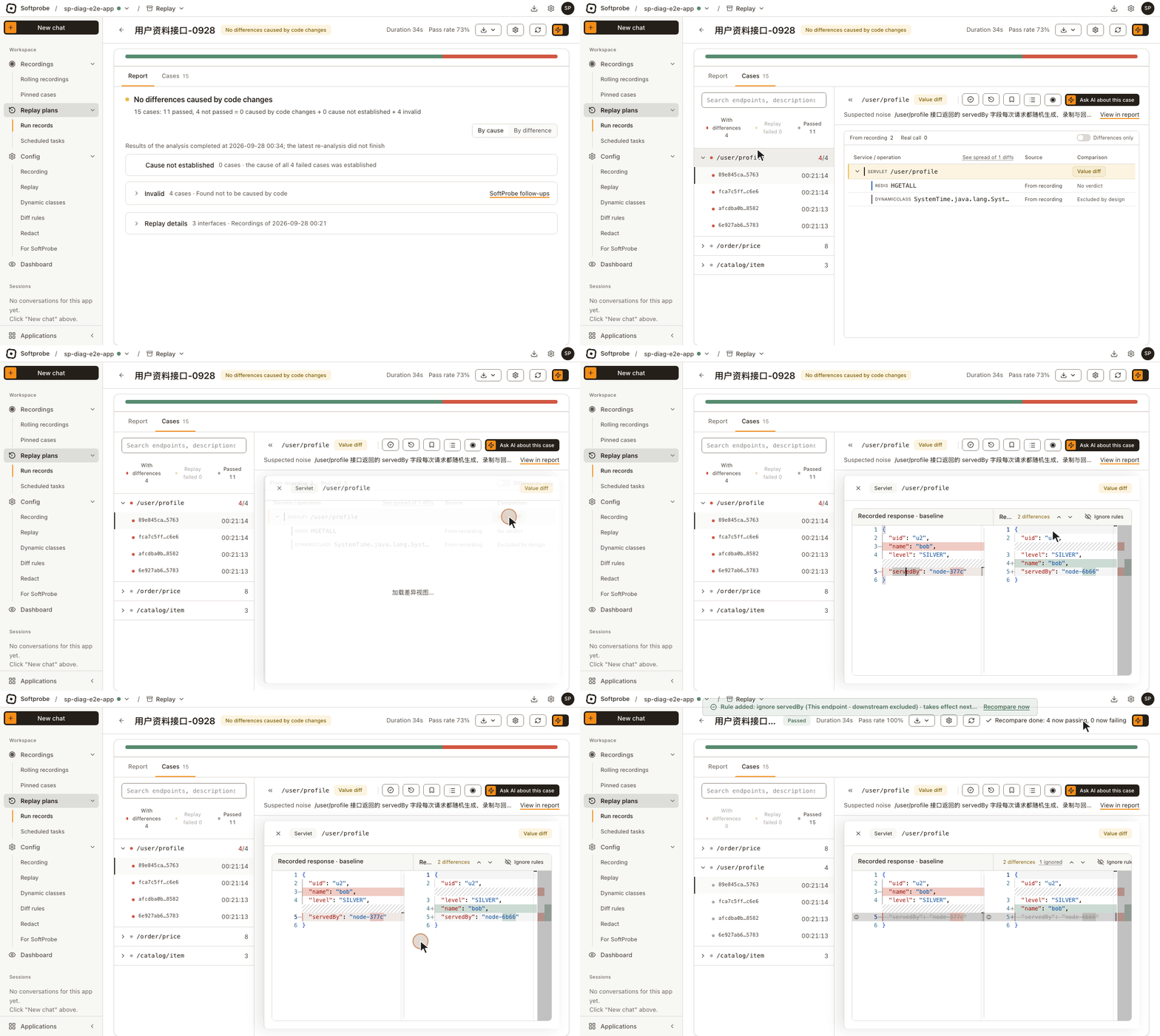
A new diff rule applies from the next replay on; it doesn't change a replay that has already finished. To see its effect now without replaying:
After you add or remove a rule from this replay's diff view, a notice offers Recompare now, and Rules changed · recompare appears at the top of the replay. Click either: Softprobe re-checks the results this replay already stored against the latest rules, then tells you how many cases turned into passes and failures, and updates the case list, counts and pass rate.
Recompare isn't replay
Recompare only re-judges the stored responses under the new rules. Nothing is sent to your service.
This entry only lasts for the current page; it's gone after a refresh or once you leave. Rules changed on the Diff rules config page don't bring it up either: to judge a finished replay by the new rules, replay again.
Stop ignoring
Changed your mind: on a struck-through field, click Stop ignoring. Softprobe removes whatever held it back and tells you what it removed:
- An Only this case mark: removed and effective immediately; the field is compared again right away.
- An endpoint or application rule: removed, effective from the next replay. To see the effect in this replay, click Recompare now in the notice. If the rule matched by field name or wildcard, other fields it held back are compared again too.
- A global default rule: you're pointed to the diff rules page.
See what a case ignores
Click the N ignored chip on a case: a panel lists every ignored field by call, and the rule that held it back. You can stop ignoring from there too.
Next
Ignoring the same field on many cases? Make it a rule: Diff rules.