

Pinned cases
Rolling recordings are deleted when they pass the retention period. Recordings you want to keep and replay again and again — core business flows, requests that caused incidents, scenarios that are hard to reproduce — should be pinned before they expire. Pinning copies the whole recording (the entry request and all of its dependency calls at the time) and keeps it until you delete it.
Pin a recording
In the call chain of a recording (Recordings → Rolling recordings, then open a recording), or on a case in a replay result, click Pin.
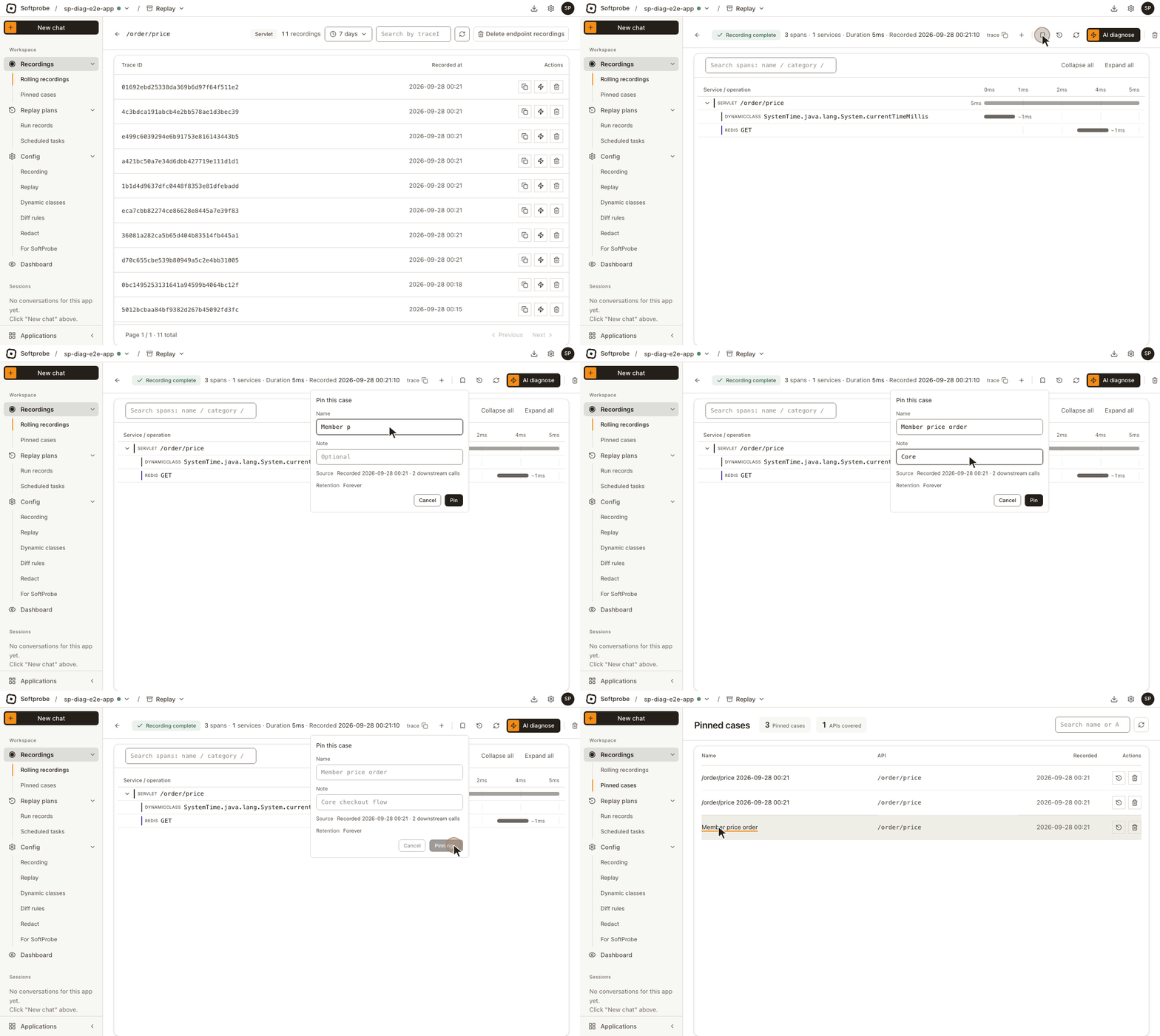
In Pin this case:
- Name: optional; better to give it a name that says what the business case is, such as "Member price order". Left empty, the list shows the endpoint name and recording time.
- Note: optional.
- Below, the recording's source time and number of downstream calls are shown, and the retention is Forever.
Click Pin. Pinning the same recording again doesn't create a second copy.
A recording that has expired can't be pinned
Pinning copies a recording that still exists. It can't bring back one that has already been deleted.
Browse pinned cases
Open Recordings → Pinned cases. The list shows name, endpoint and recording time, and you can search by name or endpoint. Each row can Replay this one (a new replay plan with just this case) or be deleted.
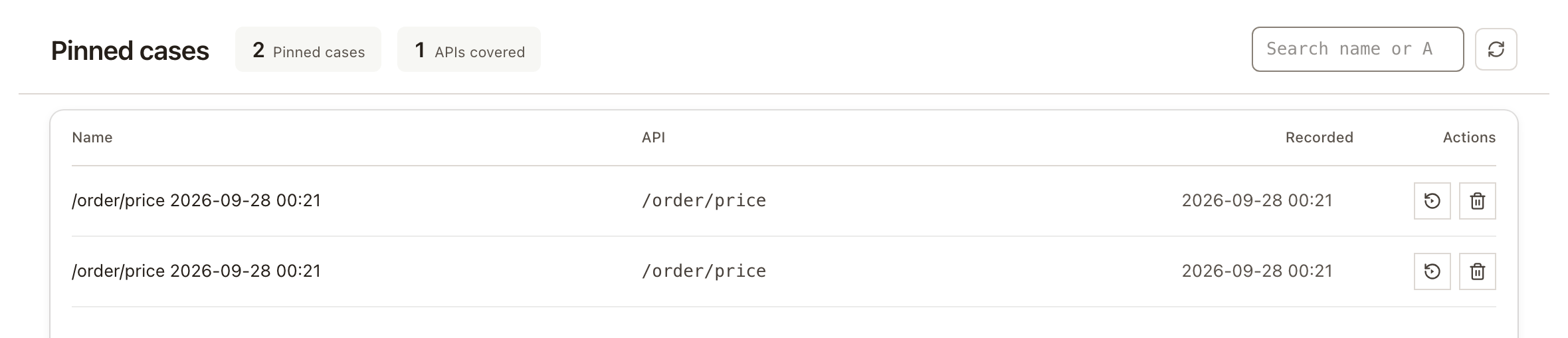
Cases marked Auto were pinned by the system, not by a person. They aren't kept for good: by default they're deleted after 14 days, and a newer recording of the same scenario can replace them. Pin cases yourself to keep them.
Replay pinned cases
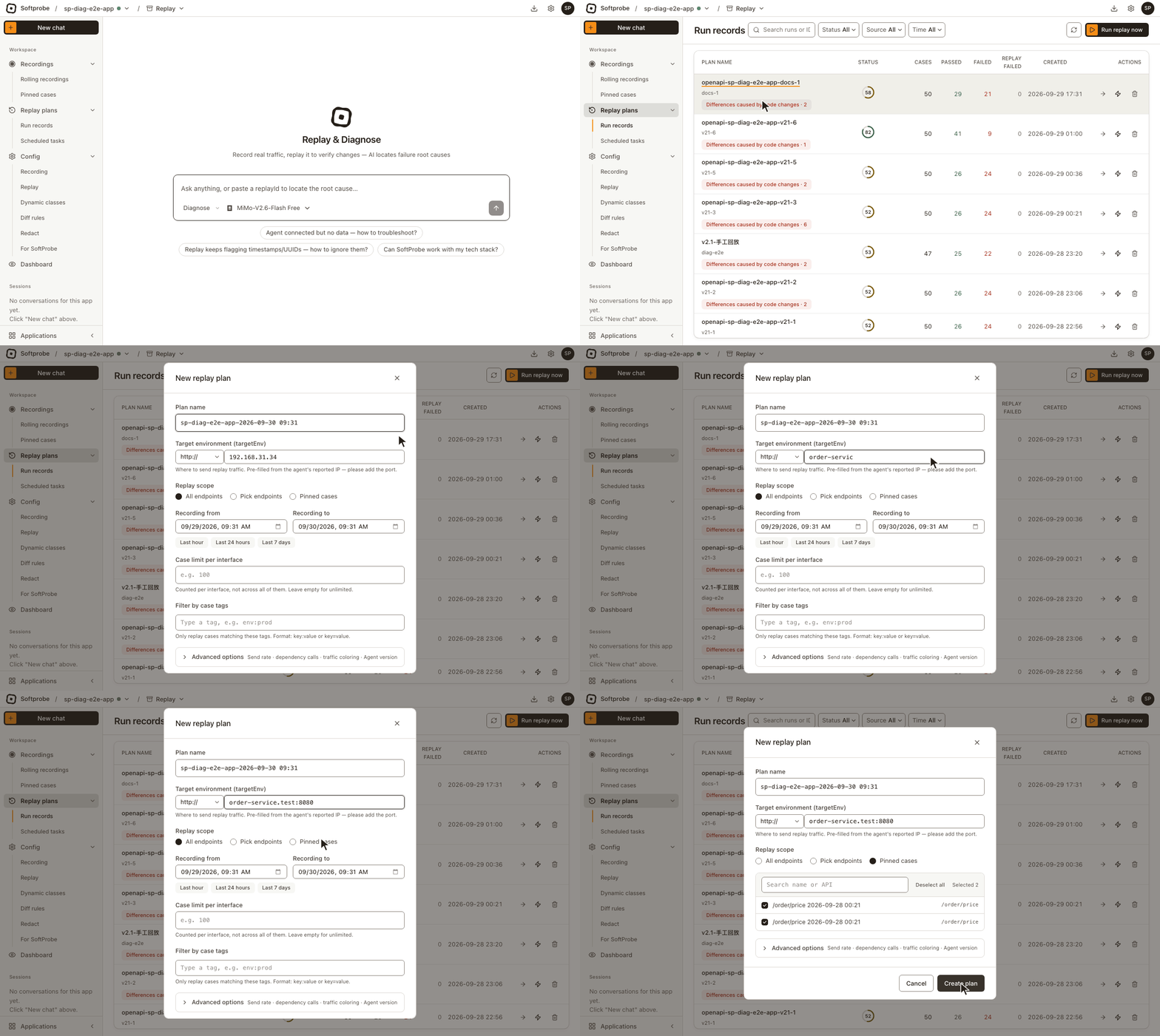
- Open Replay plans → Run records and click Run replay now.
- Fill in Target environment (targetEnv).
- Set Replay scope to Pinned cases. All pinned cases are selected by default; search, select all, or deselect individual cases.
- Click Create plan.
Scheduled tasks can also use pinned cases as their scope; see Run and schedule replays.
Replaying pinned cases ignores the recording time range, so they replay even after the original recording has expired.
Good to know
- Pinning copies; the original is unchanged. The original recording is still deleted at the end of its retention period; the pinned copy isn't affected.
- One recording, one case. The entry request and all of its dependency calls are kept together, not split into several cases.
- Removing or renaming an endpoint invalidates its cases. Pinned cases replay against the application's current endpoint configuration. Once an endpoint is removed from the application's configuration, its cases are marked API gone when you create a replay plan, and skipped.